 RealReaction AI
A review tells you what is wrong with a page. A Before & After rebuild shows you what the page could look like with the main fixes applied, so you can judge the changes before you touch your real site.
This post walks through the idea with a fictional shop, Harbor & Pine. The panel is simulated, and the example pages are an illustration we built by hand, which I explain below.
Start with a review
A rebuild starts from a review. In our sample report for Harbor & Pine, the panel found that shoppers liked the brand story but hesitated to sign up. The report lists the problems and ranks the fixes by impact.
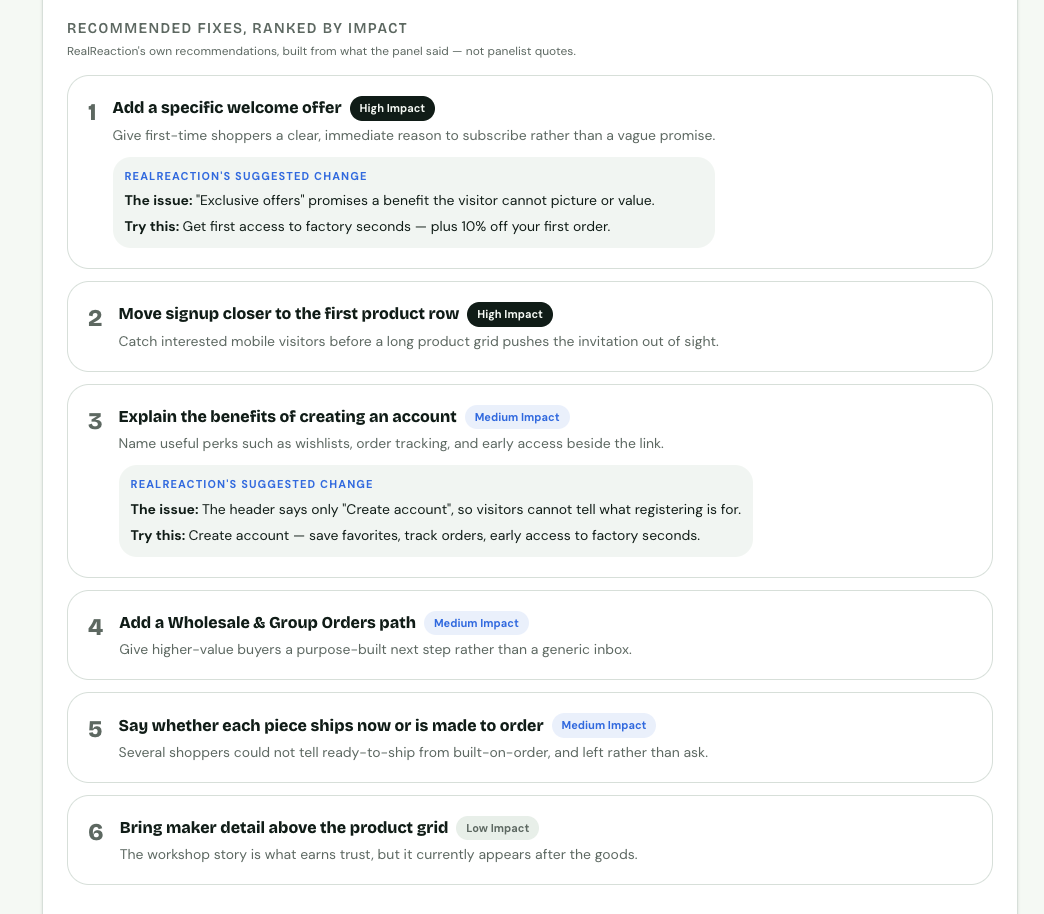
The ranked fixes from the sample report. The rebuild applies the top fixes to your page.
The page before
Here is the sample shop's page before any changes. The hero button says "Learn more," product cards say only "View," and the page never says whether items ship now or are made to order.
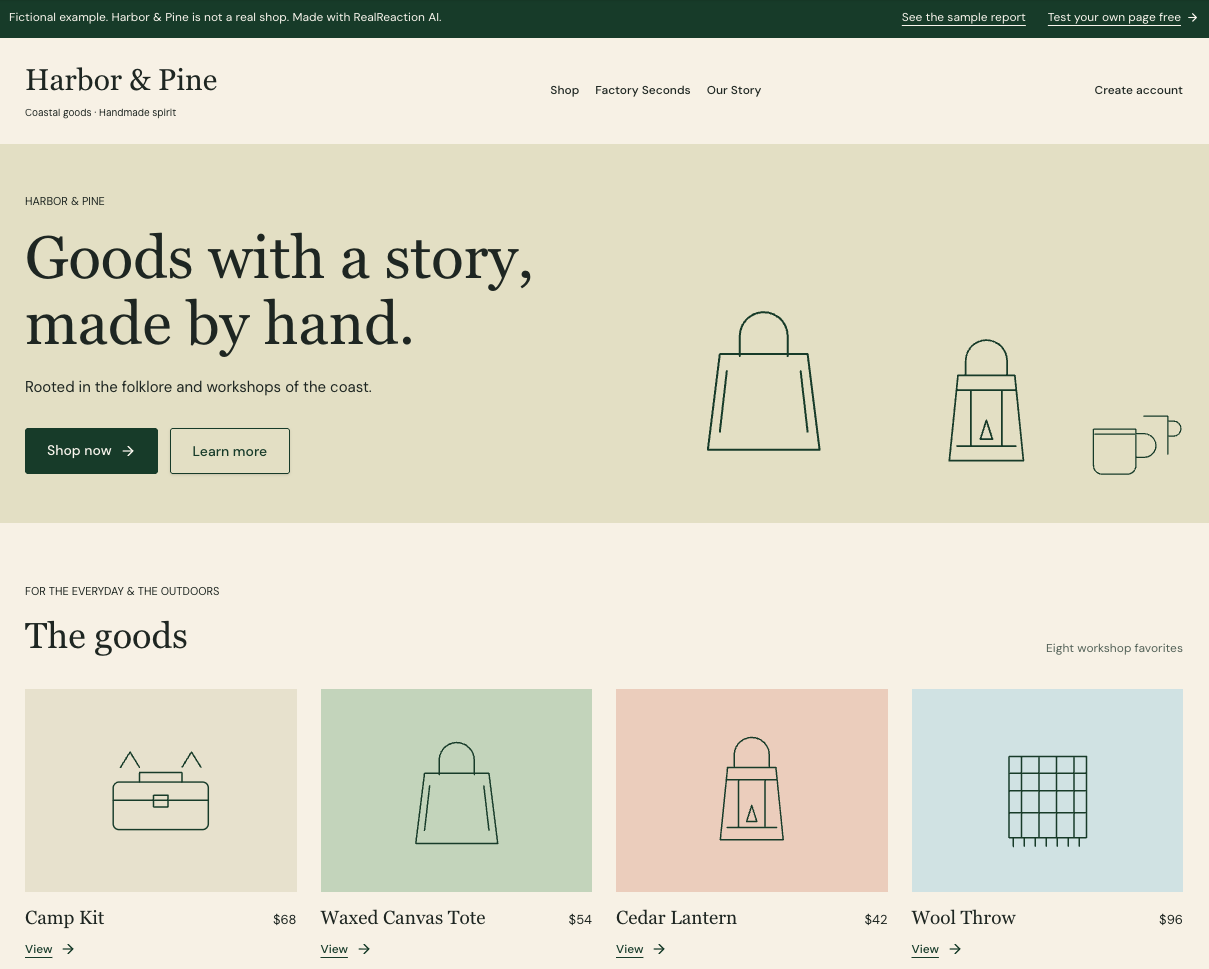
Before: vague button labels, and the product grid comes before the maker story.
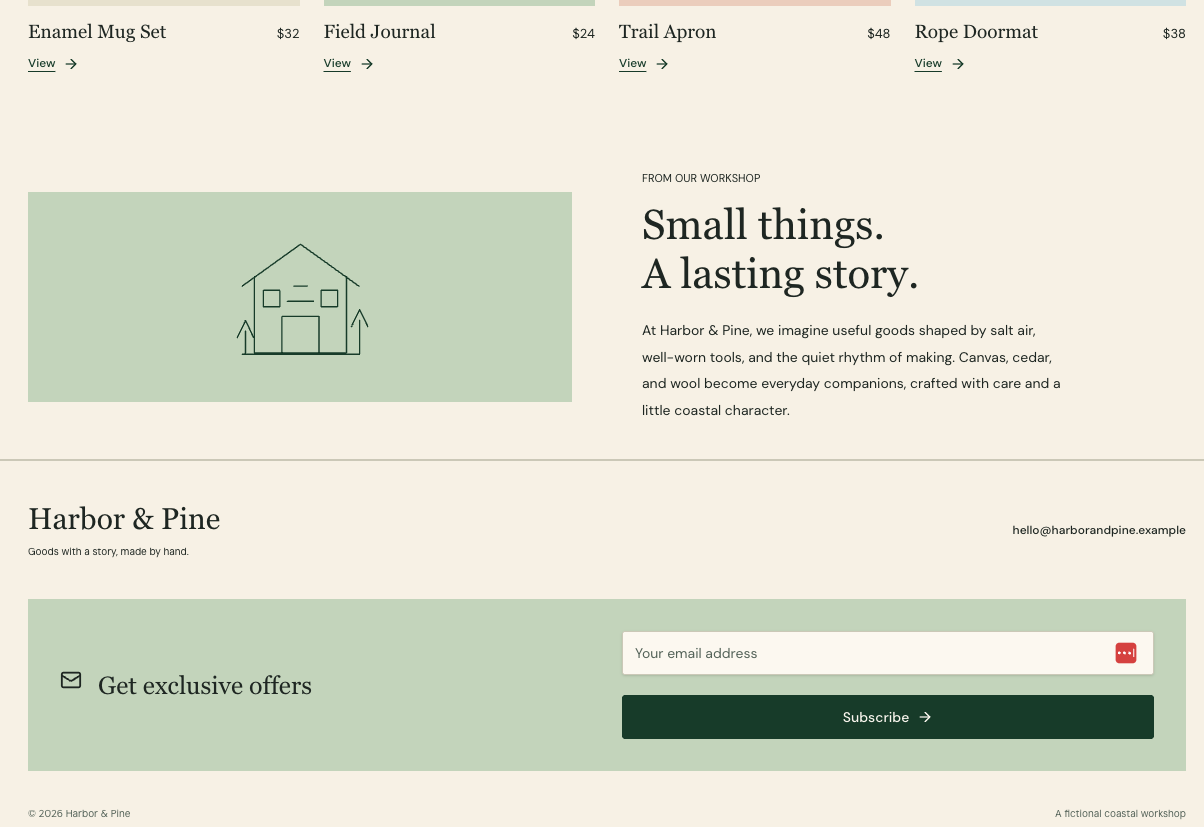
Before: the newsletter sits at the very bottom with no concrete offer.
The page after
The after version applies the report's fixes. Each one is marked with a numbered circle that matches the fix in the report.
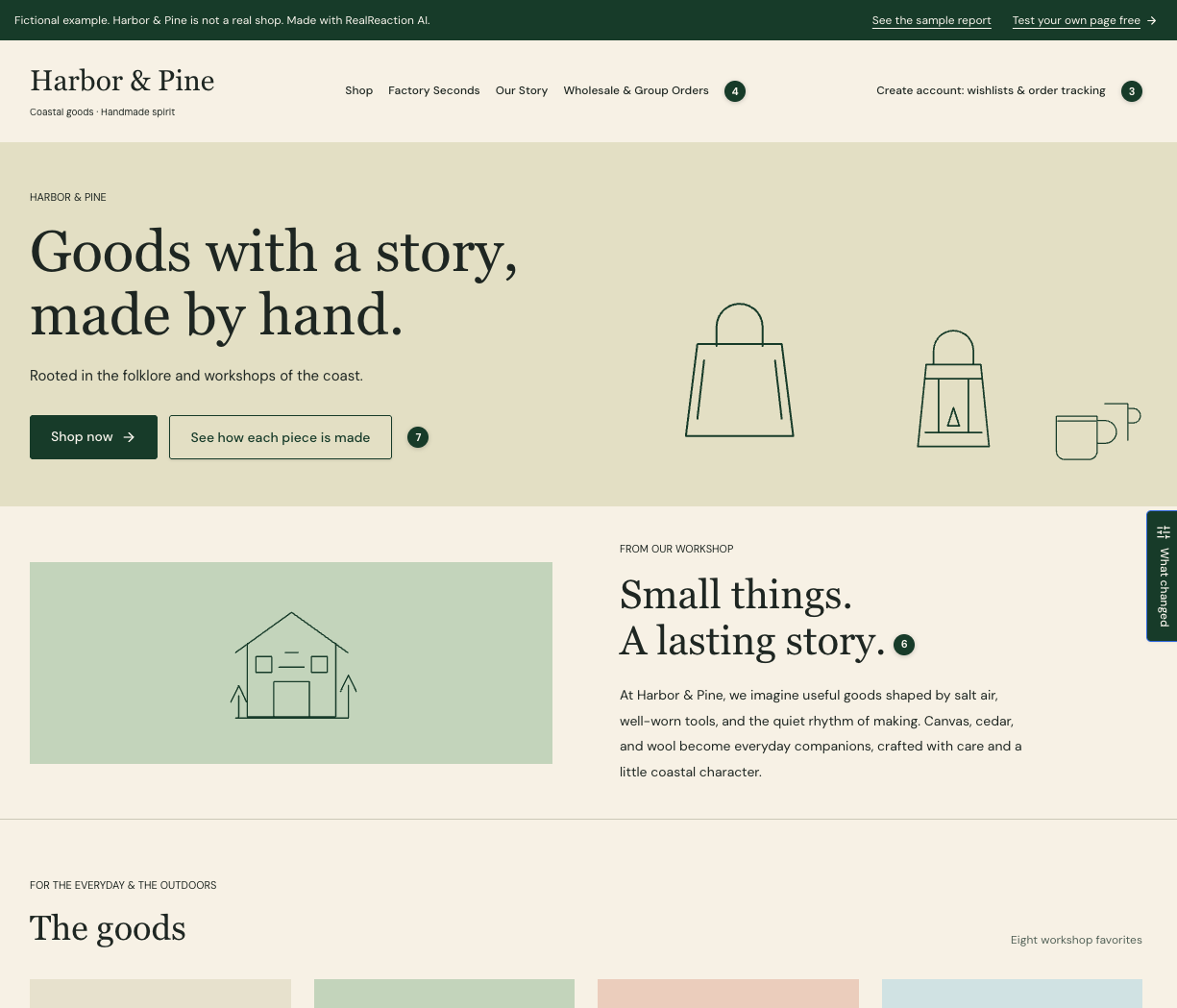
After: clearer buttons, a wholesale path, and the maker story above the products.
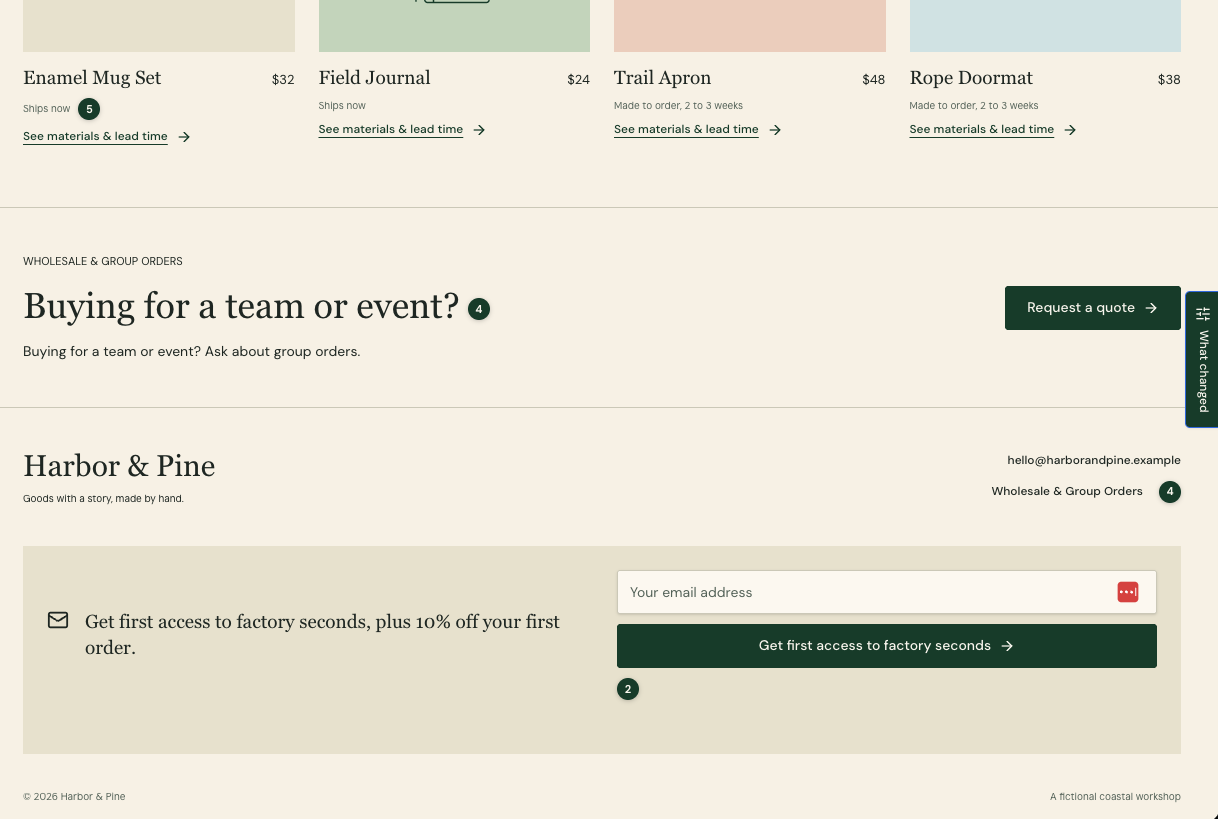
After: shipping times on every product, a group orders section, and a specific welcome offer.
What changed and why
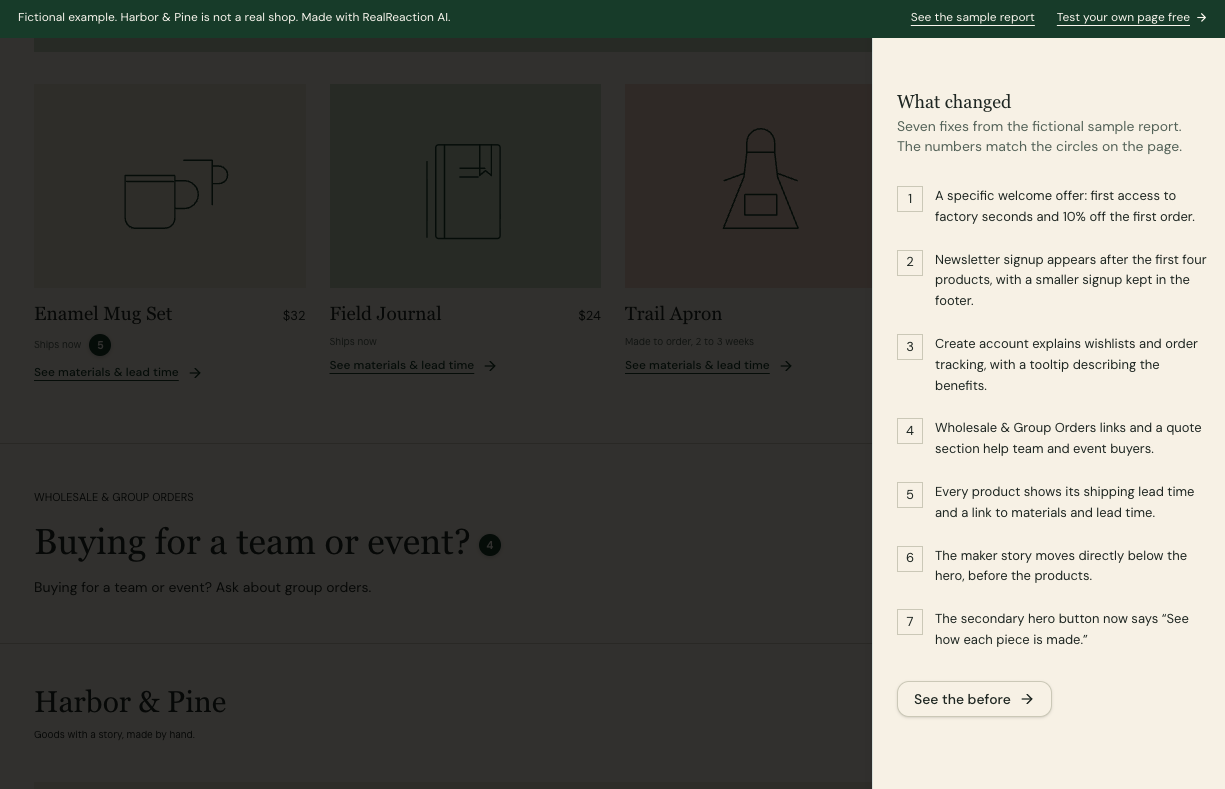
The "What changed" panel lists each change next to its marker.
Each change answers something the panel said:
- A specific welcome offer. Shoppers could not picture what "exclusive offers" meant.
- Signup placed earlier. Phone visitors scrolled past several product rows and missed it.
- Account benefits stated. The "Create account" link said nothing about wishlists or order tracking.
- A wholesale path. Corporate gift buyers found only retail pages.
- Shipping tags. Shoppers could not tell ready-to-ship from made-to-order.
- Maker story moved up. The story is what earned trust, but it appeared after the products.
- Clearer button wording. "Learn more" became a button that says what you will find.
Quick copy wins are separate
Reports also include small wording tweaks, called quick copy wins. They are not applied in a Before & After rebuild, so you paste them in yourself.
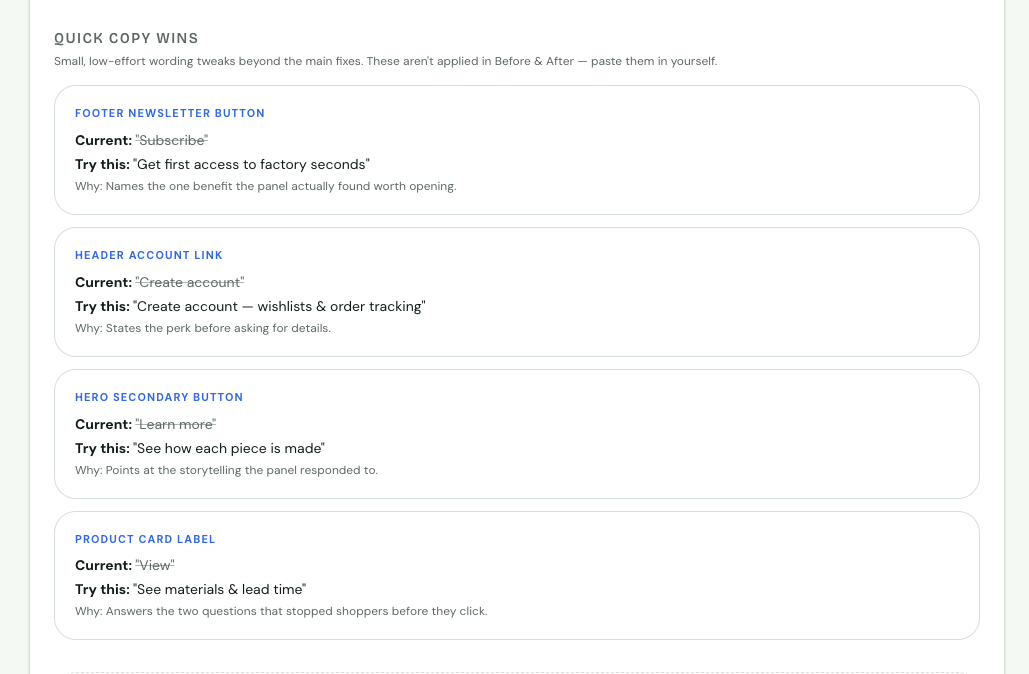
Quick copy wins show the current wording, a suggested replacement, and why.
About these example pages
We built the Harbor & Pine before and after pages by hand to illustrate the process. They are not the output of the rebuild tool. We also applied the quick copy wins to the "after" page so you could see them, which a real rebuild would not do. When you run a rebuild on your own page, it is generated from your real content, so the layout and wording will differ. You can explore both examples: before and after.
How to use a rebuild
- Compare before and after with your team or client, and agree which changes to make.
- Use it as a brief. Hand the rebuilt page to a designer or developer to apply.
- Apply the changes yourself. The preview does not change your live site.
- Re-run a review after you publish your changes to check that the stuck points went away.
A rebuild uses 2 credits. See pricing for plans, or read how to read a panel report.
What it cannot do
The rebuild is a preview, based on a simulated panel's reactions. It cannot know your customers, your prices compared with competitors, or what happens when real visitors use your page. Treat it as a way to see and discuss changes, then confirm with real data.